Manage Rates
 Admin User
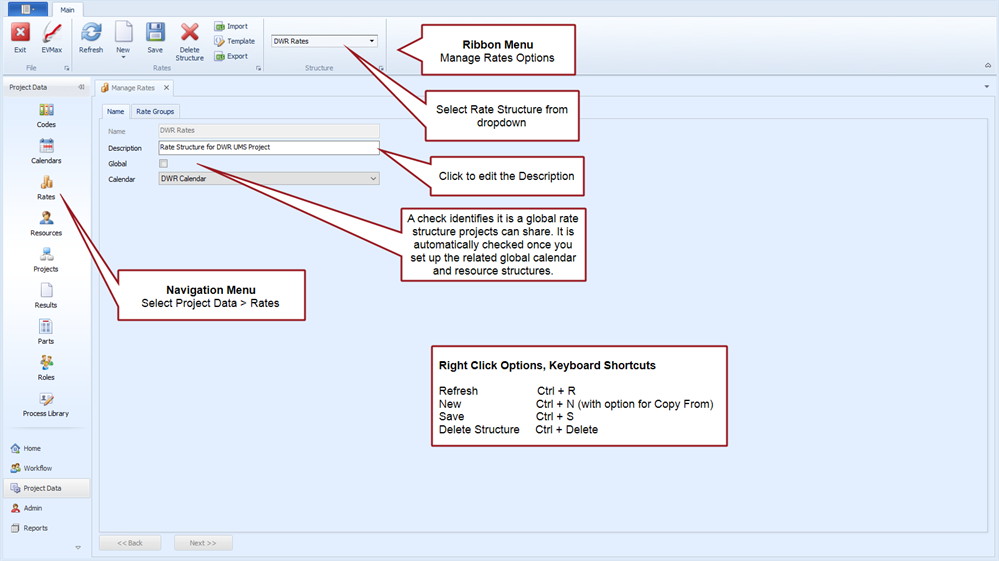
Rate structures are required to organize and identify the labor rates, overhead rates, and other cost factors needed to calculate the total cost for a project. A rate structure is made up of a set of named Rate Groups, Rate Classes, and Rates with effective dates.
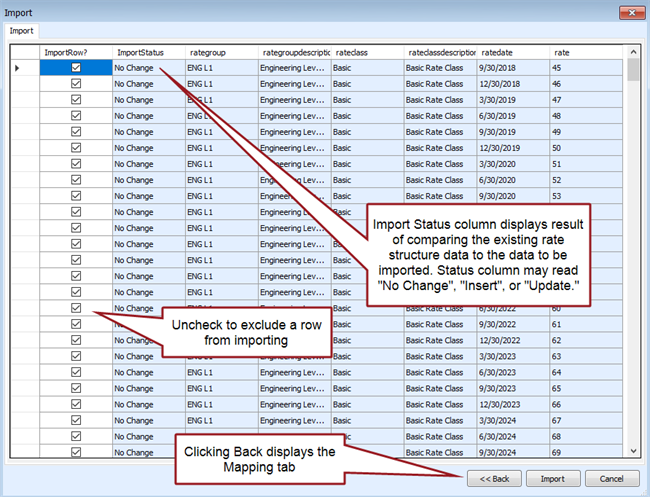
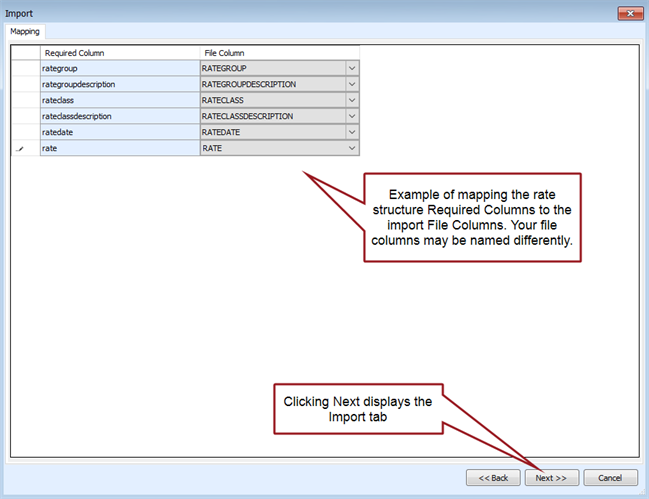
Once a rate structure is created, you can use a rate template to import rate updates from other system. For example, perhaps accounting updates the forward pricing overhead rates twice a year and provides an export file for projects to use. You can establish a rate template to properly import the updated overhead rates into the project specific or global rate structures.
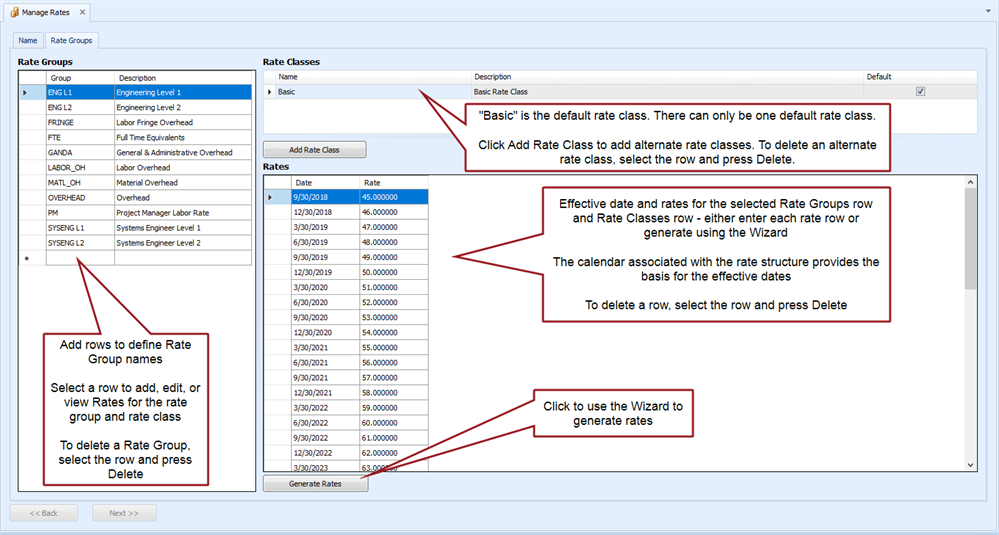
- Rate Groups. You define the list of named Rate Groups. For each rate group, you identify the applicable rates and effective dates for a specific rate class. Rate Groups are typically defined for:
- Overhead rates such as labor, material handling, and general and administrative costs.
- Fees or cost of money.
- The different categories of labor rates. These named resource rates may identify a department, skill, grade, or other means to differentiate the different types of resources used on a project.
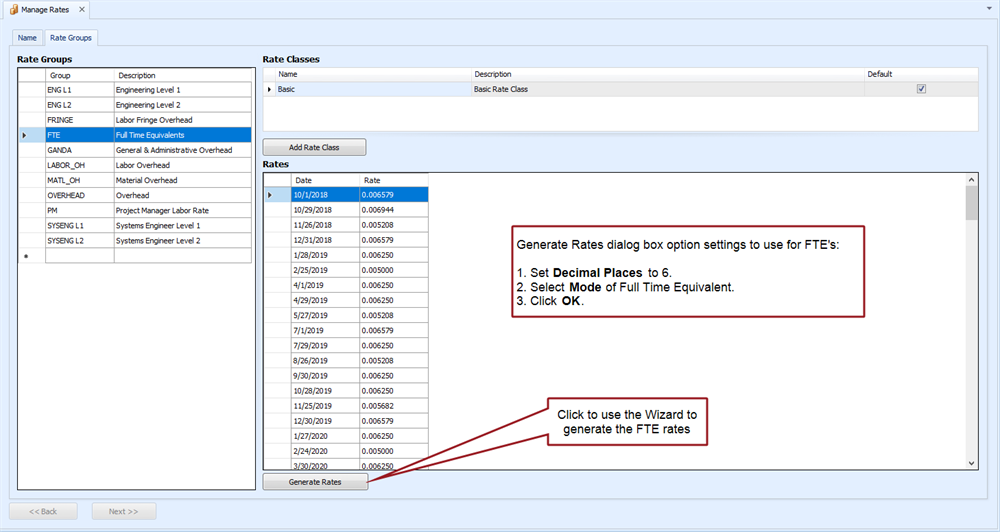
- Full time equivalent (FTE) calculations. The FTE rates are the inverse of productive hours for each calendar time frame. The FTE value can be calculated when hours are entered as the base value or hours can be calculated when FTEs are entered as the base value.
- Rate Classes. A rate class organizes rates into a single named set so you can control which set of rates are applied to the cost values. A single default rate class named "Basic" is defined when a new rate structure is created.
 Implementation Tips
- Calendar, rate, and resource structures are unique to each project or they are global structures projects can share. Create the related calendar structure before you create a new rate structure. The rate structure relies on the assigned calendar to determine rate effective dates.
- If you don't want to set up global structures, create and maintain a core rate structure template with the current approved overhead rates and full time equivalent (FTE) rates. You may want to include labor rates for commonly used resources or other rates all projects are likely to use. That way other users can quickly create a copy of the core set of rates, make any edits, and add their project specific rates.
- Use the list of Result names as the basis for naming common overhead rates defined in the rate structures. For example, perhaps you defined a Result named "LABOR_OH." Define a matching Rate Group named "LABOR_OH" for consistency in the rate structure.
- Consider how you intend to apply labor rates. When a resource name is defined in the resource structure, in instances where the Rate Group name and the Resource name match, the Rate Group is automatically assigned to the resource.
- Establish a rate template to import routine accounting rate updates into the project specific or global rate structures. You can use the template to map the data coming from another system or to assign a default rate class.
 What to Do Next
Once you have created a unique calendar and rate structure for your project, the next steps are to:
- Create a project unique Resource Structure.
- Create project unique Codes. At a minimum, this includes the work breakdown structure (WBS). If you intend to add user defined codes or fields to your resource structure, add those codes before you create your resource structure.
- Create your Project.
If you want to set up global calendar, rate, and resource structures projects can share instead of project unique structures, see Setup Global Structures.